COUNTERTOP DESIGN TOOL

Kitchen Countertop Visualizer

Upload a photo of your kitchen to preview virtual countertops on your existing cabinets. Compare light quartz, white marble, solid oak, concrete, and black granite before ordering stone samples.

Your kitchen photo

No photo handy? Try one:

Mode

Keep layout, change the look
Change the layoutComing soon

Cabinets, appliances and the island stay where they are. Colors, materials and style change.

QualityLow · 1 credit

Standard and high quality are on paid plans.

What to changeCountertop

Countertop · Material · AI picks if you skip

Style (optional)No style picked
Image formatAs the photo

We keep the proportions of your photo.

Anything else? (optional)Optional
0/300

What we will ask for

  • Update: Countertop (AI picks).
  • Layout, walls, windows and doors stay as they are.

Add a photo first

Kitchen preview

See your kitchen redesigned

Upload a photo, choose what to change, and compare the before and after. Walls, windows and the camera angle stay as they are.

BeforeAfterBeforeAfter
Countertop · Light quartz

COUNTERTOP IDEAS

Compare Virtual Countertops on Real Kitchen Photos

Drag the slider between before and after to see how light quartz, veined marble, and dark granite change the warmth and brightness of existing wood or painted cabinets.

SCENARIO 01 · BRIGHTEN WOOD CABINETS

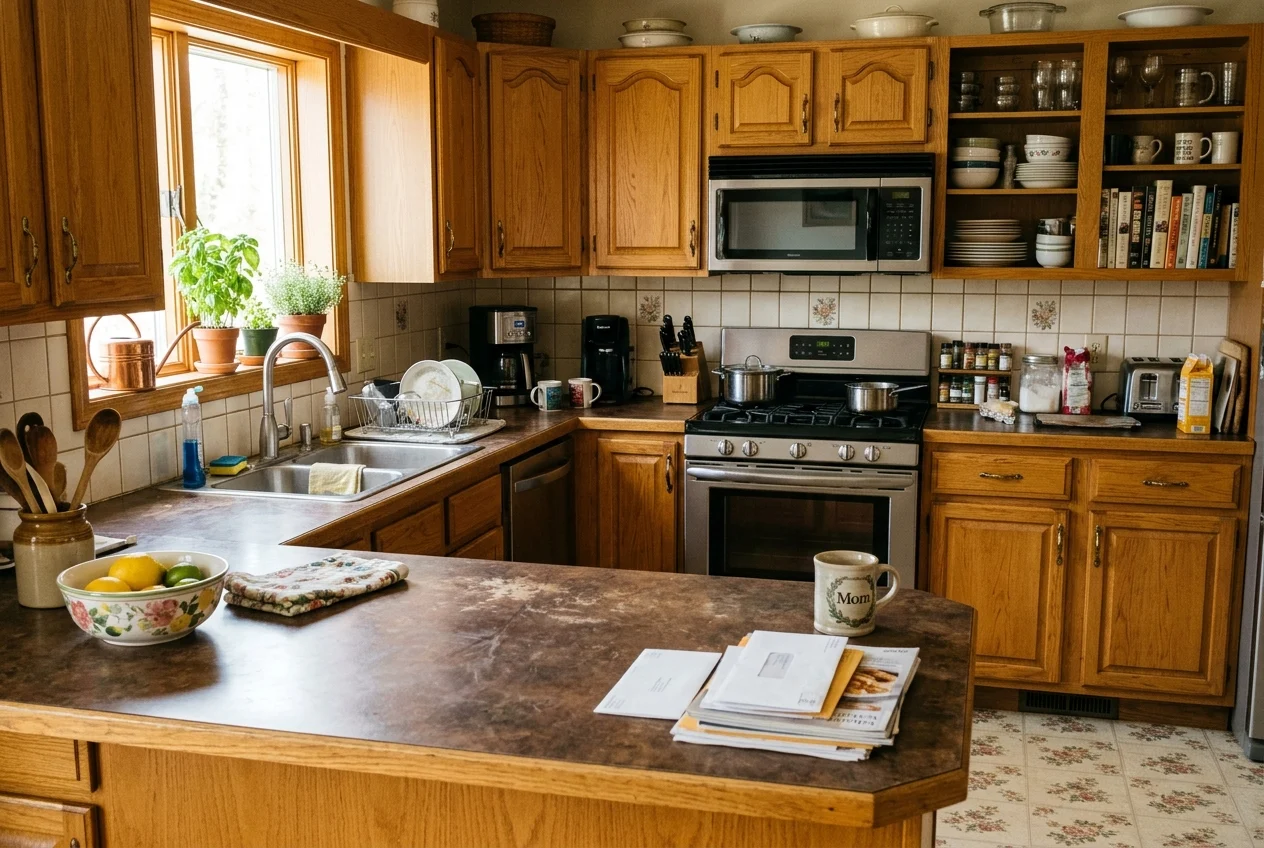
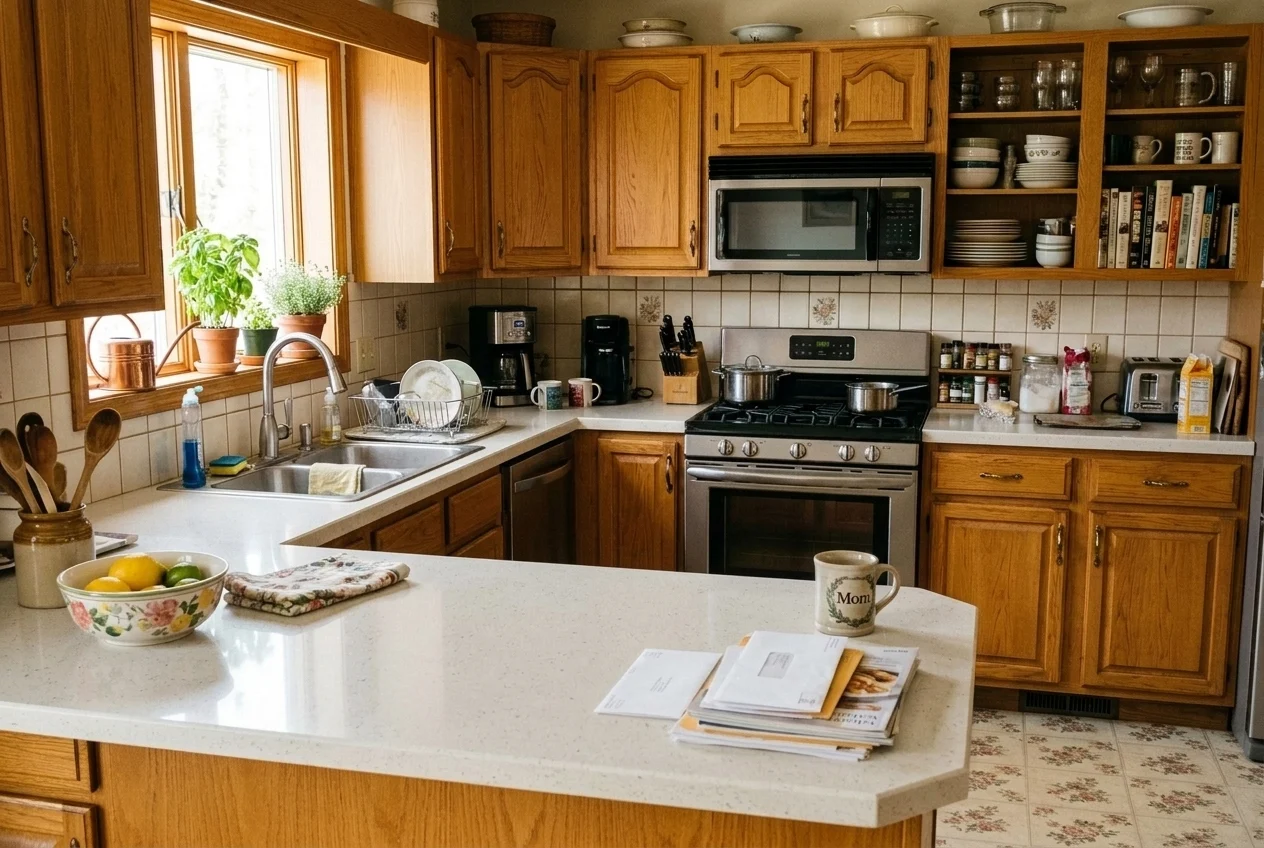
Light Quartz Countertops on Honey-Oak Cabinets

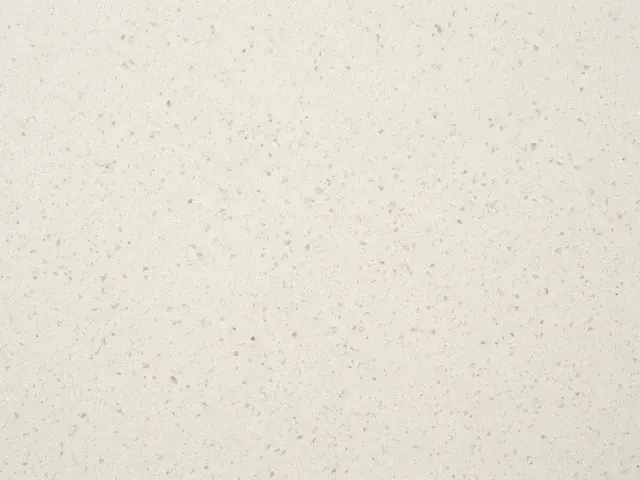
Keep warm wood cabinet boxes in place and replace dated beige laminate or dark stone with a pale quartz surface. Light quartz reflects more daylight across the prep zone without making a traditional kitchen feel sterile.

  • Softens warm orange and honey-oak cabinet tones
  • Fine mineral texture stays calm next to tiled backsplashes
Try Light Quartz
The same honey-oak kitchen updated with bright light quartz countertops while cabinets stay unchanged
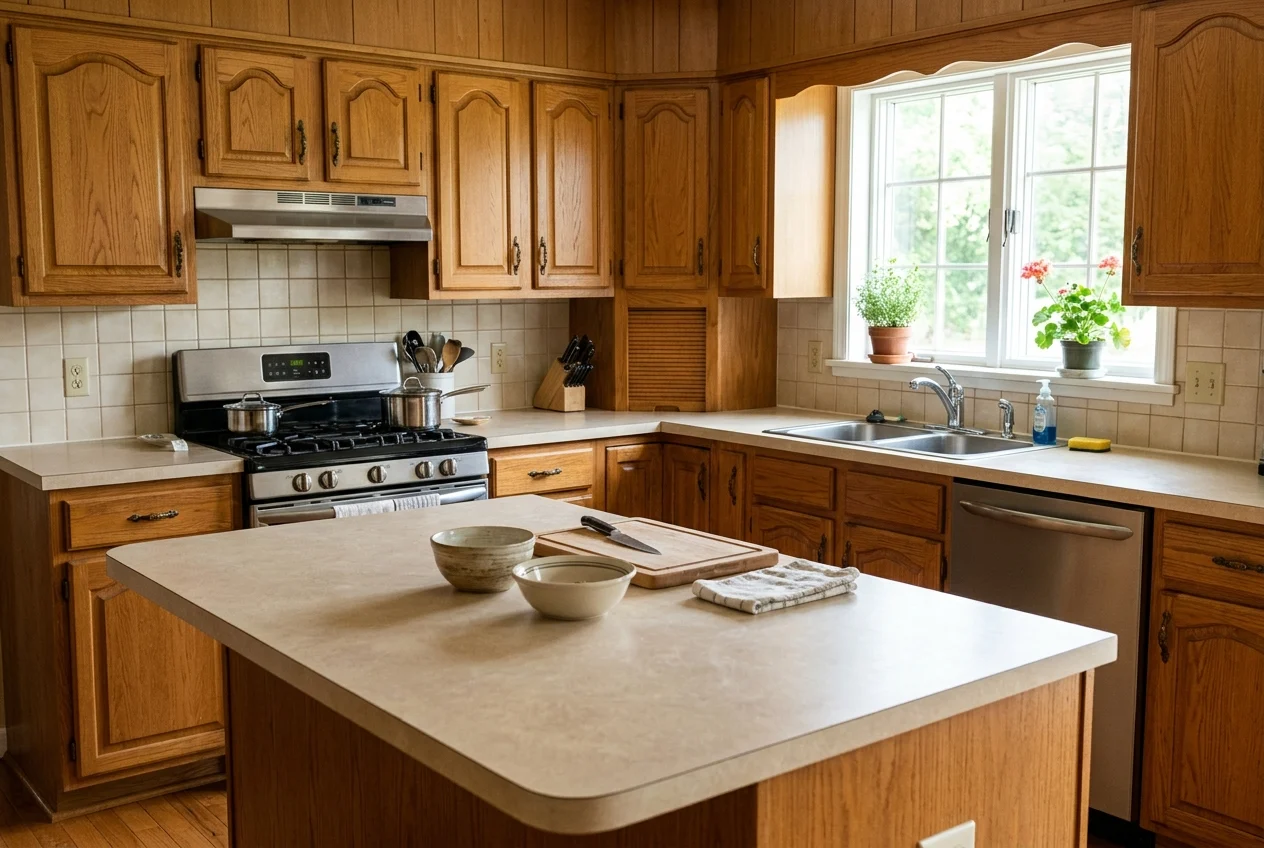
Honey-oak peninsula kitchen with dated dark brown laminate countertops before restyling
BeforeAfter

SCENARIO 02 · TEST VEINING SCALE

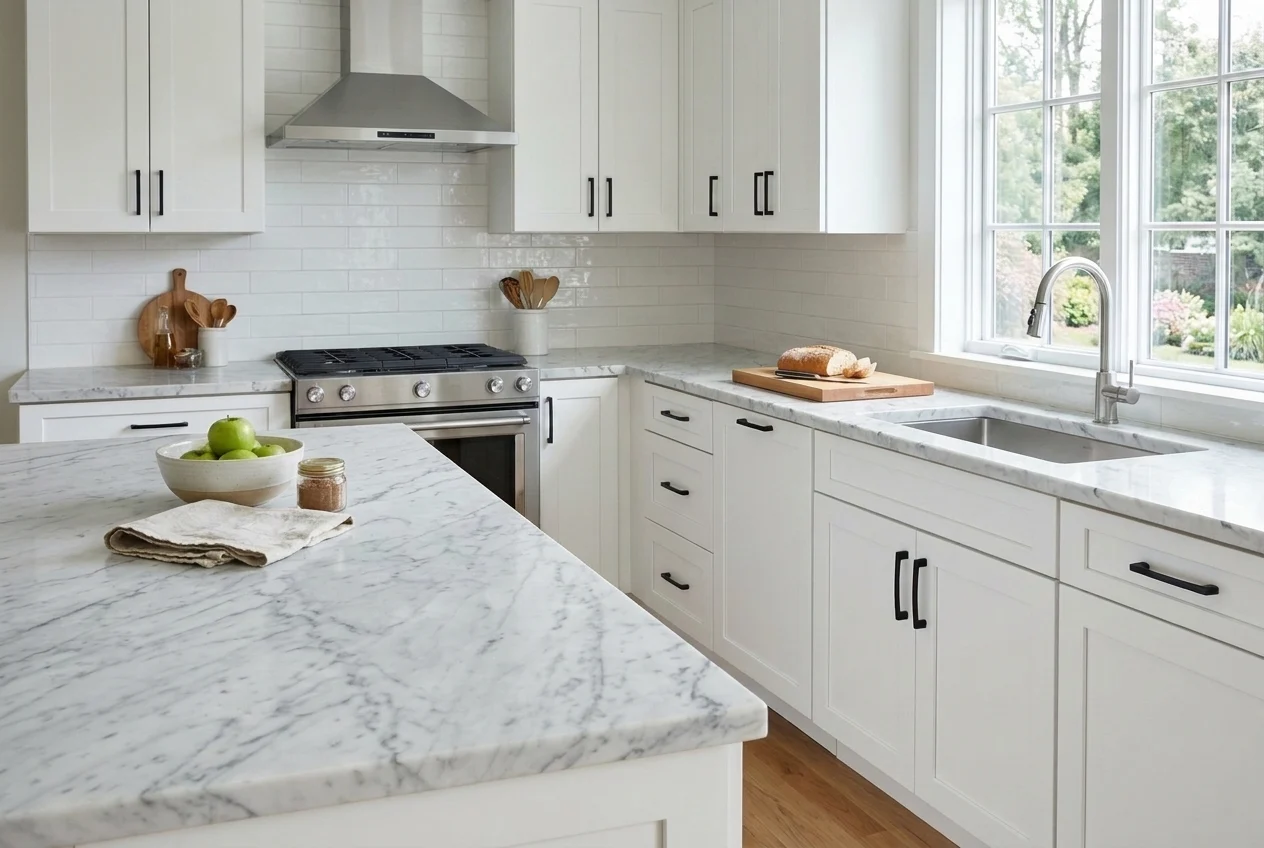
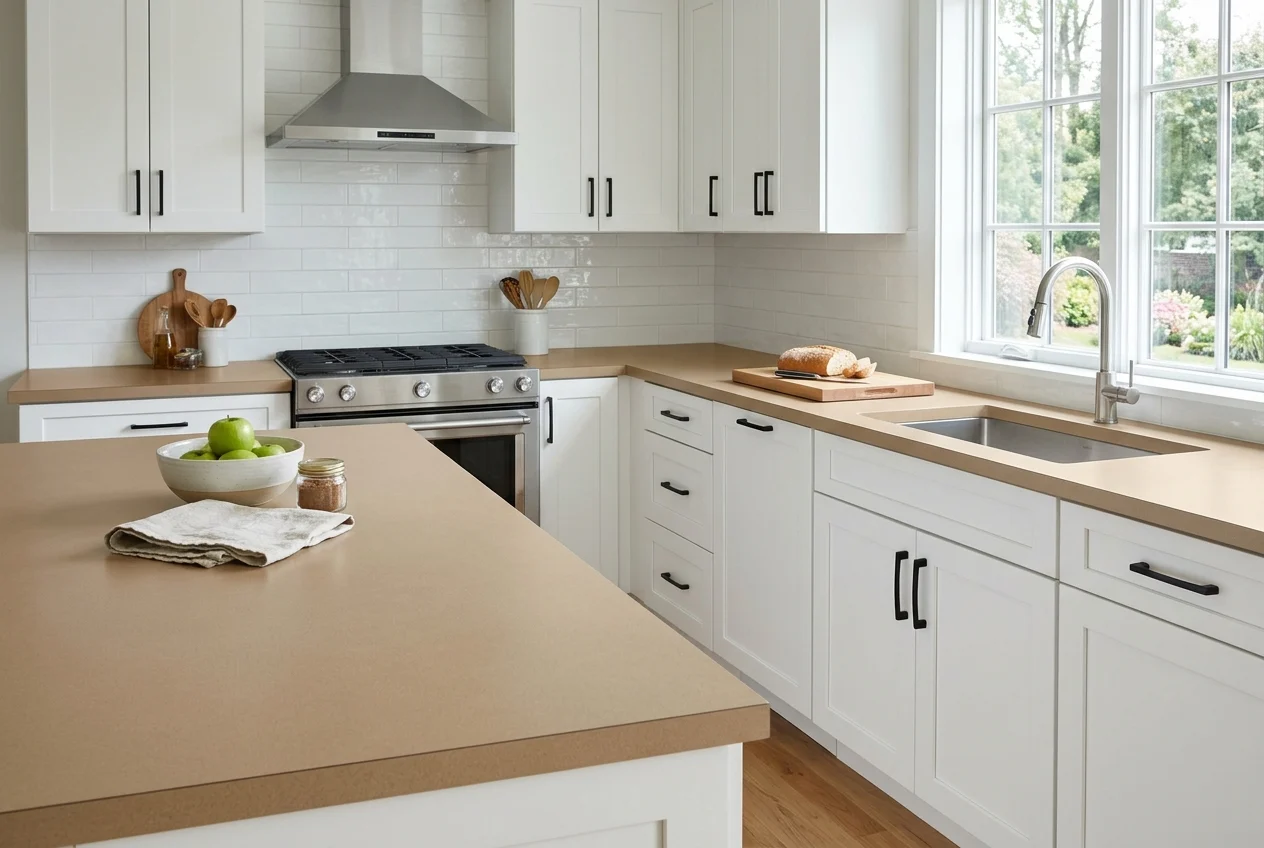
White Carrara Marble with Soft Gray Veining

Preview how natural gray veining moves across perimeter counters and corners before visiting a stone yard. Testing marble on your own photo helps you judge whether subtle movement adds depth or competes with your cabinet hardware.

  • Pairs naturally with white, cream, and shaker cabinetry
  • Helps evaluate vein contrast under your room's daylight
Try White Marble
The same white shaker kitchen updated with white Carrara marble countertops and soft gray veining
White shaker island kitchen with warm tan laminate countertops before restyling
BeforeAfter

SCENARIO 03 · GROUND AN OPEN KITCHEN

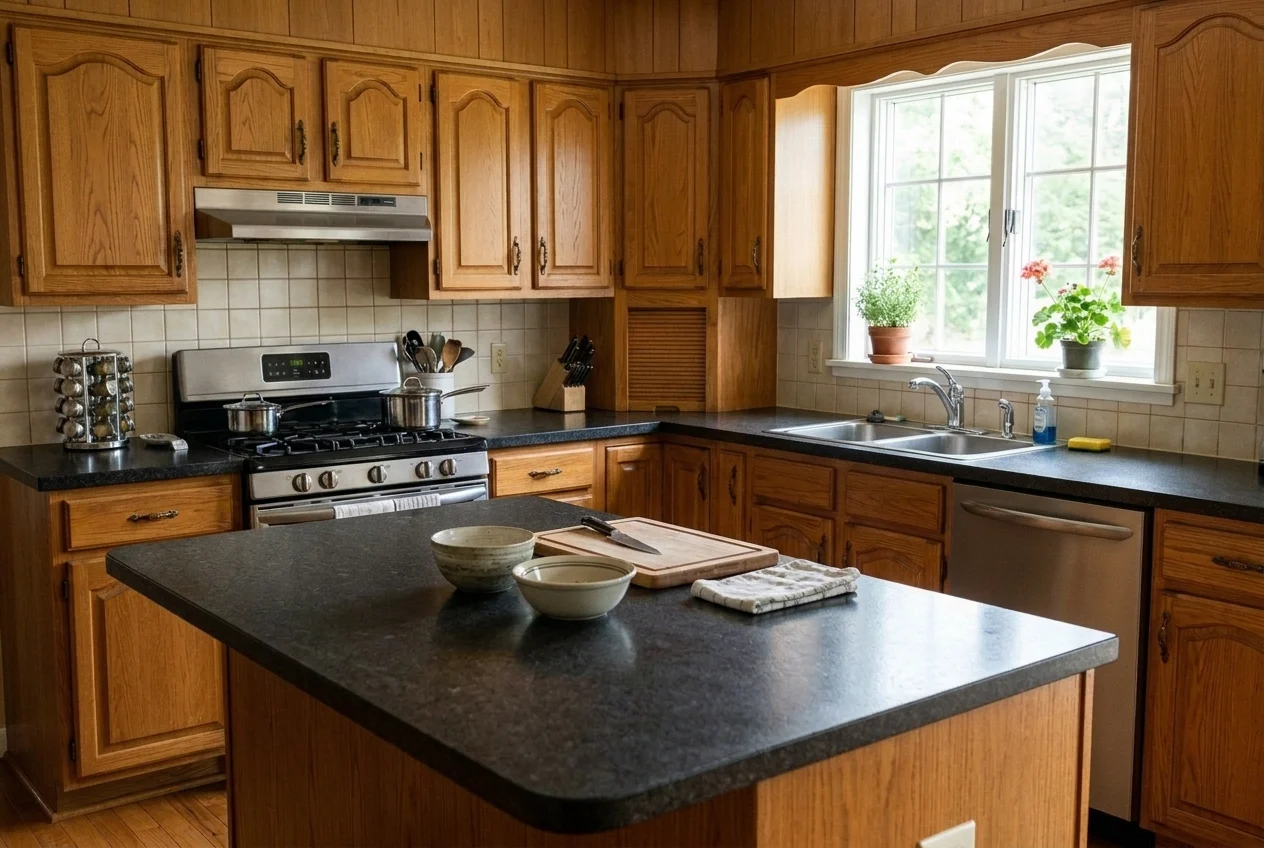
Honed Black Granite for High-Contrast Islands and Counters

Test a deep matte black granite surface before committing to dark stone. Use the virtual kitchen countertop designer to check whether dark counters ground your island or make the room feel too heavy.

  • Creates crisp definition against warm wood or white doors
  • Ideal for testing perimeter-and-island stone contrast
Try Black Granite
The same oak island kitchen updated with honed black granite countertops
Warm natural oak island kitchen with pale beige laminate countertops before restyling
BeforeAfter

MATERIAL GUIDE

Countertop Materials You Can Preview

Countertop is already selected in the countertop design tool above. Compare how each surface reads on a kitchen photo and click any material to load it into the generator.

Note: Generated previews are conceptual visual references for narrowing down stone styles. AI may alter sink cutouts, overhang proportions, or small details—always confirm slab measurements and physical samples with your fabricator.

HOW IT WORKS

How the Countertop Visualizer Works

  1. 01

    Upload your kitchen photo

    Take a clear, straight-on photo of your kitchen in normal daylight. JPG, PNG, and WEBP files up to 10 MB work in your browser.

  2. 02

    Pick a countertop material

    Countertop is pre-selected for you. Choose quartz, marble, oak, concrete, black granite, or type a custom stone description.

  3. 03

    Compare before and after

    Press Generate to create your preview. Slide between Before and After to evaluate how the new surface works with your cabinets and floor.

FREQUENTLY ASKED QUESTIONS

Questions About the Countertop Visualizer

How does the kitchen countertop visualizer upload photo workflow work?
Drop a JPG, PNG, or WEBP photo of your kitchen into the upload panel at the top of this page. Because Countertop is already checked, you only need to pick a stone or wood finish (or type your own) and press Generate to see the new surface on your photo.
Do I need to install countertop visualizer software?
No installation is required. The tool runs in your web browser on desktop and mobile devices, so you can test virtual countertops from a phone photo while visiting a stone yard or showroom.
Can I keep my current cabinets and only change the countertop?
Yes. When only Countertop is selected under What to change, the instruction asks the AI model to update the counter surface and preserve your existing cabinet doors, backsplash, flooring, and appliances.
Can I preview a new backsplash or cabinet color at the same time?
Yes. In the What to change group, you can check Backsplash, Cabinets, Island, Floor, or Lighting alongside Countertop to see how a full material combination looks together.
Will the generated stone veining match a specific showroom slab?
The built-in material cards are visual appearance references. The AI generates a realistic stone or wood texture based on your photo and the written material description, so exact veining patterns and color temperature will differ from an individual quarry slab.

Ready to compare virtual countertops on your kitchen?

Upload one photo and test your first countertop material above.